
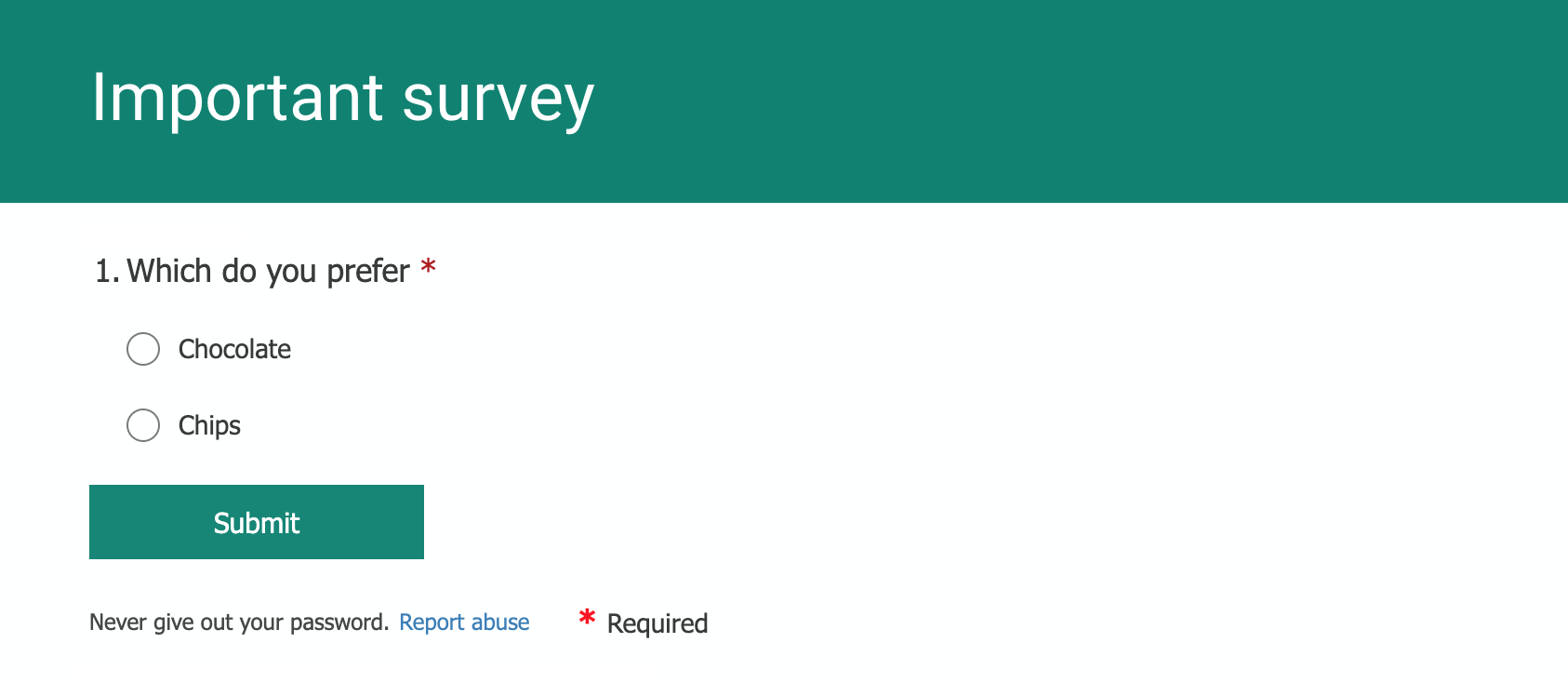
Adding a survey is easy on mySchoolApp and parents find it simple to respond via the app. We recommend using either Microsoft or Google forms to create your survey, but other online systems will also work. Once the online form has been created the url (web link) can be used in either the Documents or News sections of the app. In addition, as the survey is created independently of the app you will also be able to make it available on the school website, social media or email to individuals.
Microsoft Forms
Google Forms
How to make your online survey available on mySchoolApp.
(example below using Google Forms)
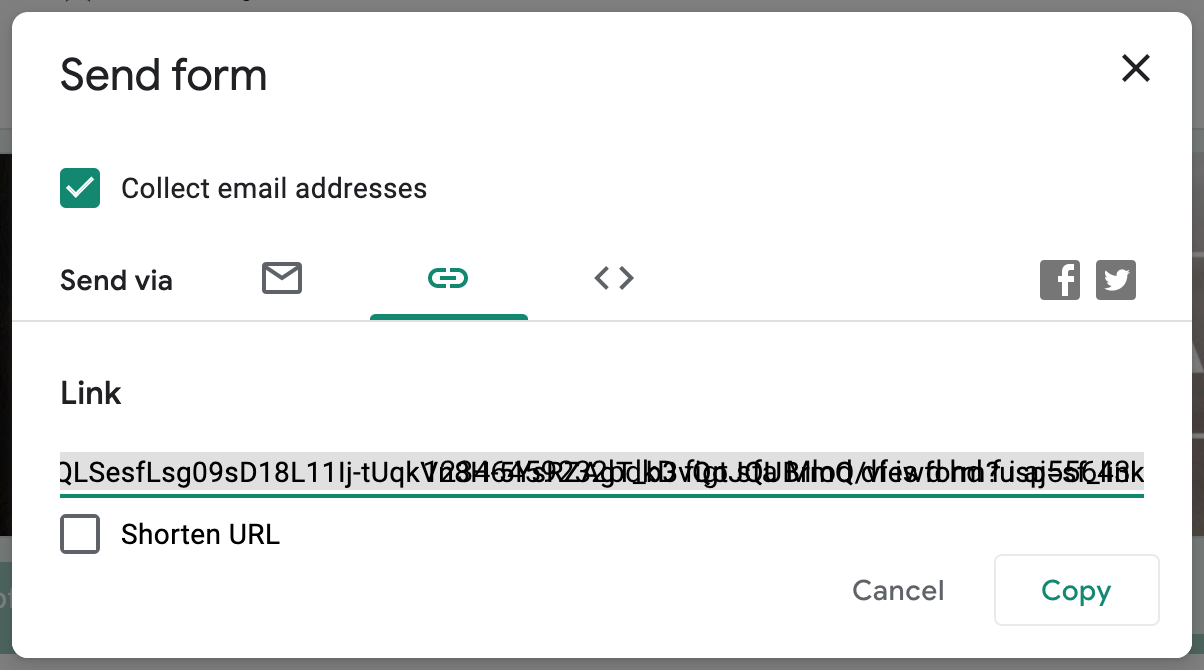
Once you have created your survey click the Send button at the top of the screen.

On the pop up box select Send via link and click the Copy button
Now open the mySchoolApp admin portal and login as usual.
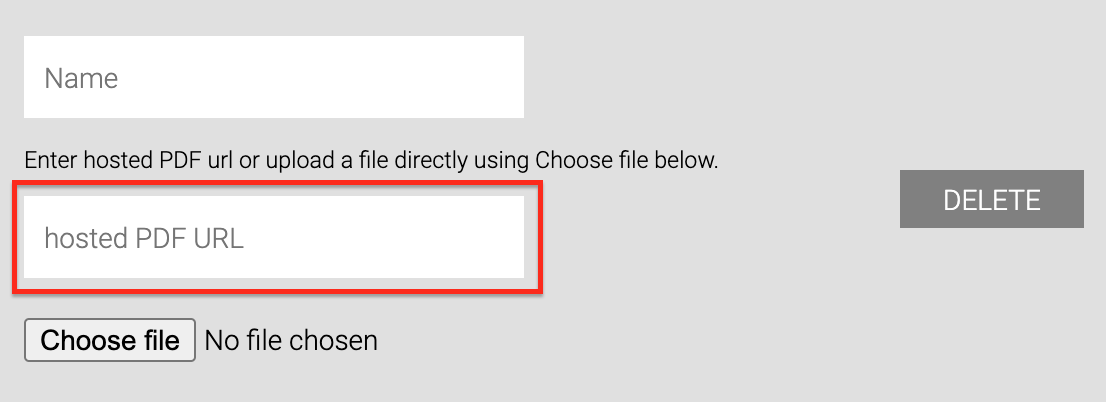
Choose whether you'd like to add the survey as a weblink in the News section or maybe add a Surveys folder to Documents and paste the link in the field marked Hosted PDF URL
Once published on the app a linked message can be sent to parents/carers requesting they submit their response
Comments
0 comments
Please sign in to leave a comment.