
There are a few things to do to ensure your parents and carers are seeing your school looking its best on the new app. Follow these instructions and start taking advantage of the exciting new features straight away.
Categories
Push notification groups have been changed to Categories on the new portal. This means you can now can use the same groups to send messages and also tag news items and events. There are now two sections in Categories – Year groups/Classes and Other. When parents view Categories in Calendar or News, Year Groups/Classes will be sorted to display before Other groups.
If you had already set up push notification groups for your school, these will have been automatically imported into the new Categories feature. You can view the imported data by logging into the new portal and going to Account settings and select Categories in the drop down menu.

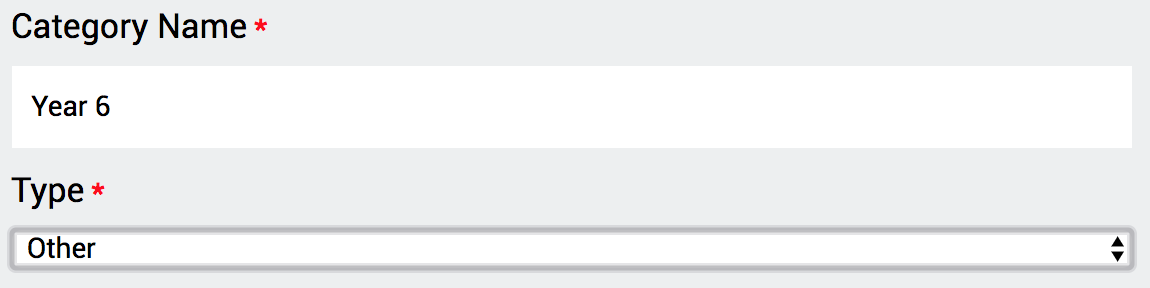
All imported groups will be filed as Other but you can easily change the section by clicking EDIT and assigning the Type as Year groups.
To watch a video about how to manage categories on the portal, please click here
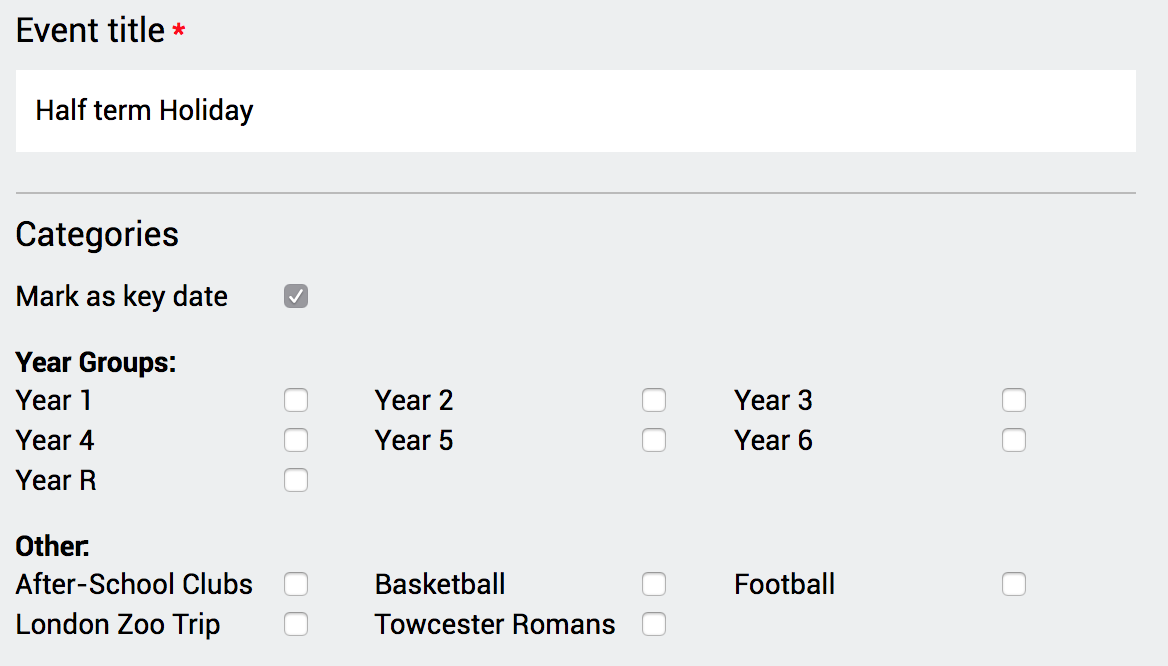
Once you have reorganised the Categories you can start to use them to assign to News and Calendar events. It is possible to assign multiple Categories to a News item or event. A Year 6 netball match, could be tagged as Year 6 and Netball for example. This would mean parents would see the event listed if they apply either filter.
Key Dates
Key dates is now a default category. You can use this category to assign to Term dates and major school events (a Half term holiday, or SATs week, for example). Parents will be able to view any events categorised as Key Dates with a single tap from the app home screen. For schools adding a lot of events this will ensure parents don't miss the important dates in the school calendar.
Comments
0 comments
Please sign in to leave a comment.